
From locker door to finished job, and back again
Six steps. The customer sees three screens and two text messages. Everything else happens behind the scenes.
Choose what you need done
The kiosk opens on two choices: deposit or collect. Deposit leads to the category wall — the trades available at that site, each with a large tile you can hit without reading glasses.
- Only categories enabled for that site are shown.
- No login, no app download, no account to create first.
- A caretaker screen handles faults and category requests.
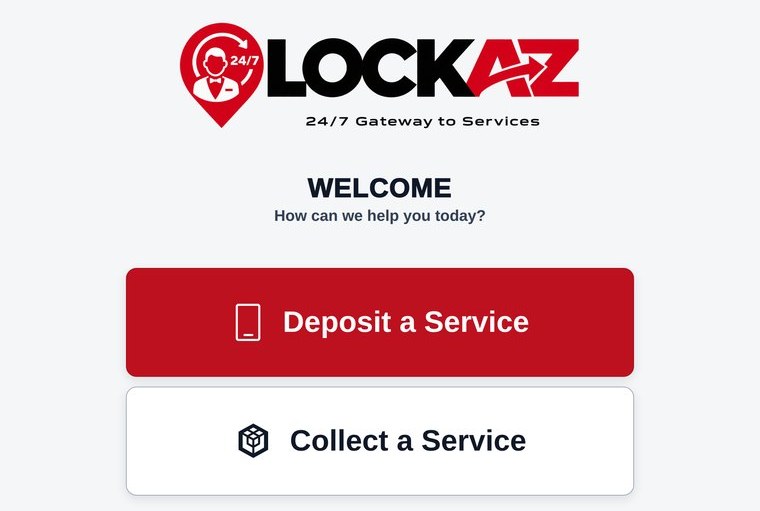
STEP 1 — WELCOME SCREEN
Pick your category
Computer repairs, laundry, shoes, bags, embroidery, engraving, dry cleaning, watches, clothes. One tap. The tiles are sized for a touchscreen in a public space, not a phone in a quiet room.
- Terms and a short how-to video are one scan away.
- Don't see what you need? Suggest a category from the same screen.
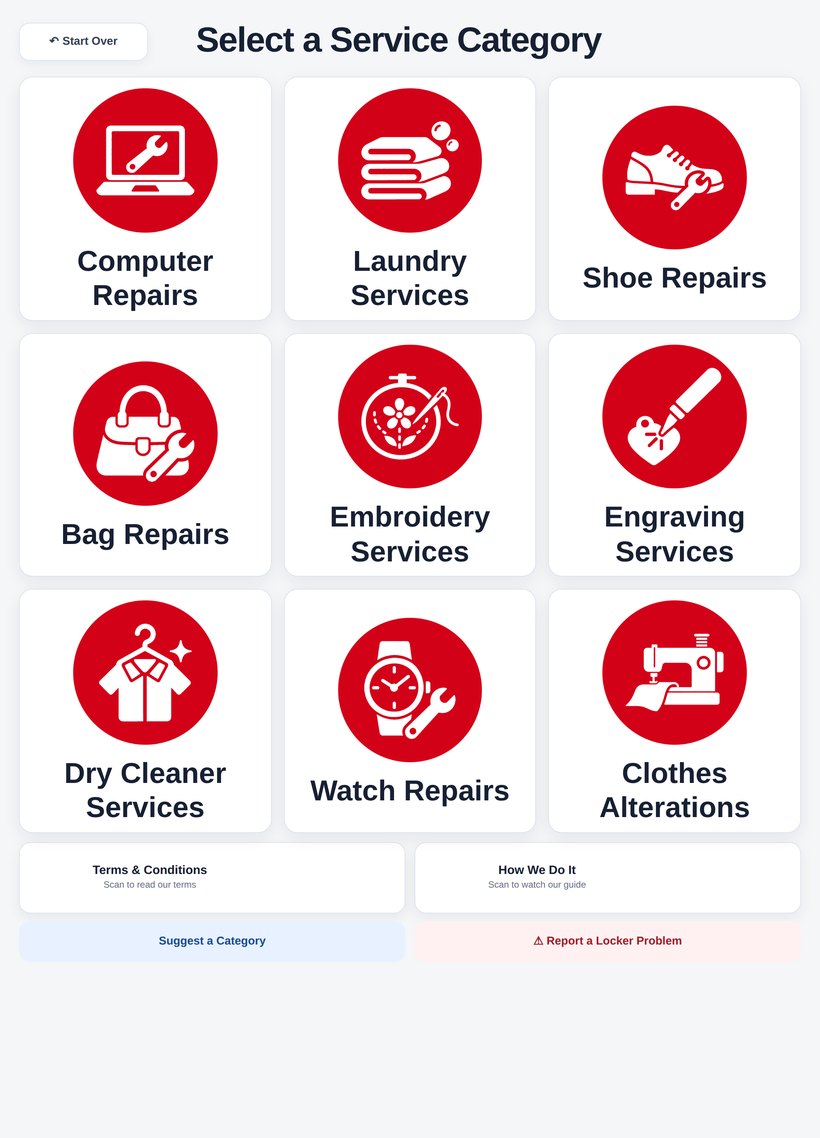
STEP 2 — SELECT A SERVICE CATEGORY
Pick the item, then tell us what is wrong
Each category opens into the items it actually covers. Computer repairs gives you laptop, desktop, hard drive, console, phone, tablet, or other.
Then you describe the problem in your own words — what is wrong, or what you need done. “Screen cracked, bottom right corner.” “Hem these two pairs of trousers, 3cm shorter.” “Won’t charge unless I wiggle the cable.” “New heel tips, both shoes.”
There is no form to fill in and no jargon to get right. The more you say, the more accurate the quote that comes back — but a sentence is enough.
- Your description goes to the provider before they collect, so they arrive knowing the job.
- The item and category decide which providers are eligible for it.
- “Other” is always available, so nothing gets turned away at the door.
- If it turns out to be something else, the provider re-quotes and you approve again.
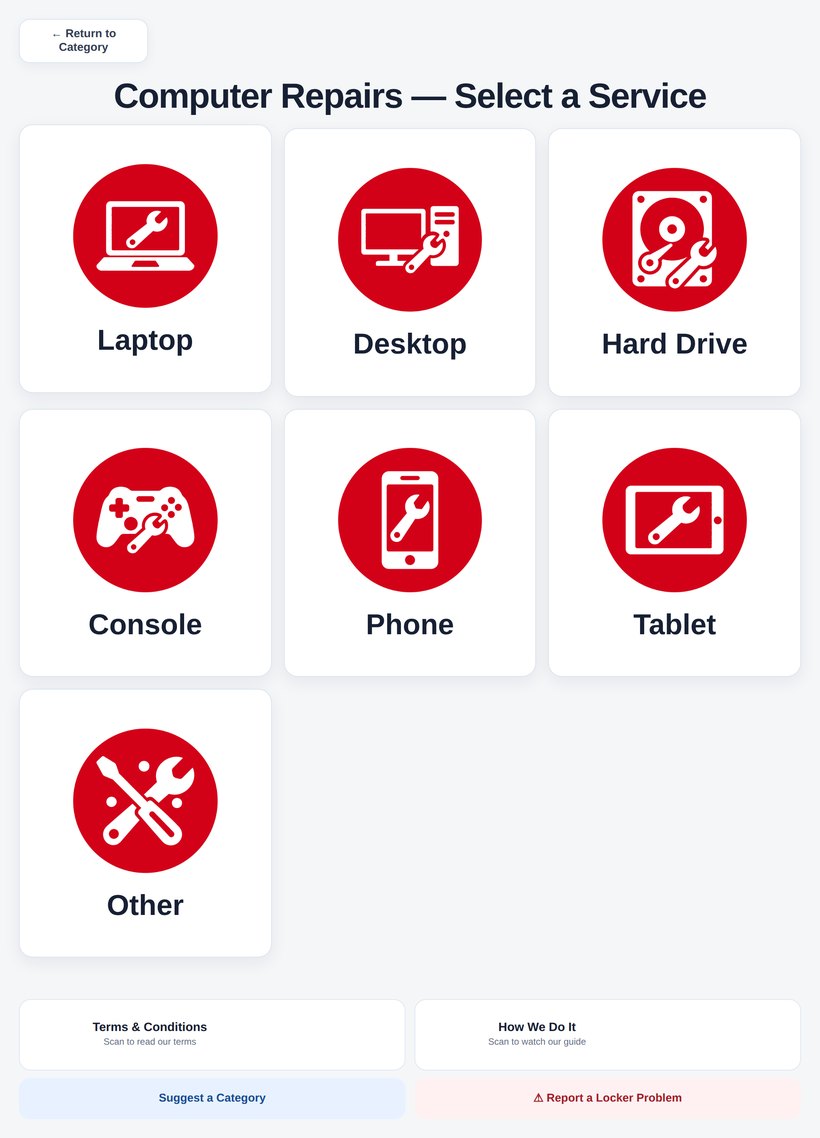
STEP 3 — SELECT A SERVICE
What happens after you walk away
We route it
The platform matches the item to a provider who covers that category, that item type and that postcode. Exclusions beat inclusions, and inclusions beat radius — so you can carve out exactly who services where.
They quote, you approve
The provider collects from the locker, photographs the item, inspects it and sends a quote. You get an SMS with the amount and your ticket number. Nothing is charged until you say yes.
Back in the locker
Finished work goes back into a locker at the same site. Another SMS, a fresh code, and you collect whenever you're next passing — 6am or midnight.
The things people ask about
| Question | Answer |
|---|---|
| Ticket number | Sent by SMS the moment you close the locker door. It is what you quote for any enquiry. |
| Approving a quote | The provider sends a quote through the platform; you receive it by SMS and approve or decline. Revised quotes are sent the same way, with the revision tracked. |
| Photo evidence | Providers photograph items at collection and on return. Those photos are visible to you in the customer portal against your ticket. |
| If the internet drops | The kiosk keeps working. It secures your item, shows you a temporary reference to photograph, and sends the real ticket by SMS once the connection is back. |
| Discounts | Coupon codes are issued to customers by SMS and appear under a discounts tab in the customer portal, applied at settlement. |
| Something wrong with the locker | Report a Locker Problem is on every kiosk screen. It raises a fault against that specific cabinet, and comes to LOCKAZ. |
Bring LOCKAZ to your trade or your site
Whether you repair, clean, alter or engrave — or you have foot traffic and a spare corner — there's a place for you in the network.